




Erge Asia — An integrated digital ecosystem that connects international shipping, marketplace sellers, purchase assistance services, and business management in one platform — supported by AI technology, digital wallet systems, and a global logistics network to over 100 countries.
Google Maps is a very useful tool for visually showing locations on your website or blog. By embedding a map, your site visitors can see the location you are referring to more clearly.
Here is a guide on how to professionally and easily embed Google Maps from Erge Asia. Follow the 5 steps below.
Guide to Embedding Google Maps (5 Steps)
Type the name of the place or address in the search bar.
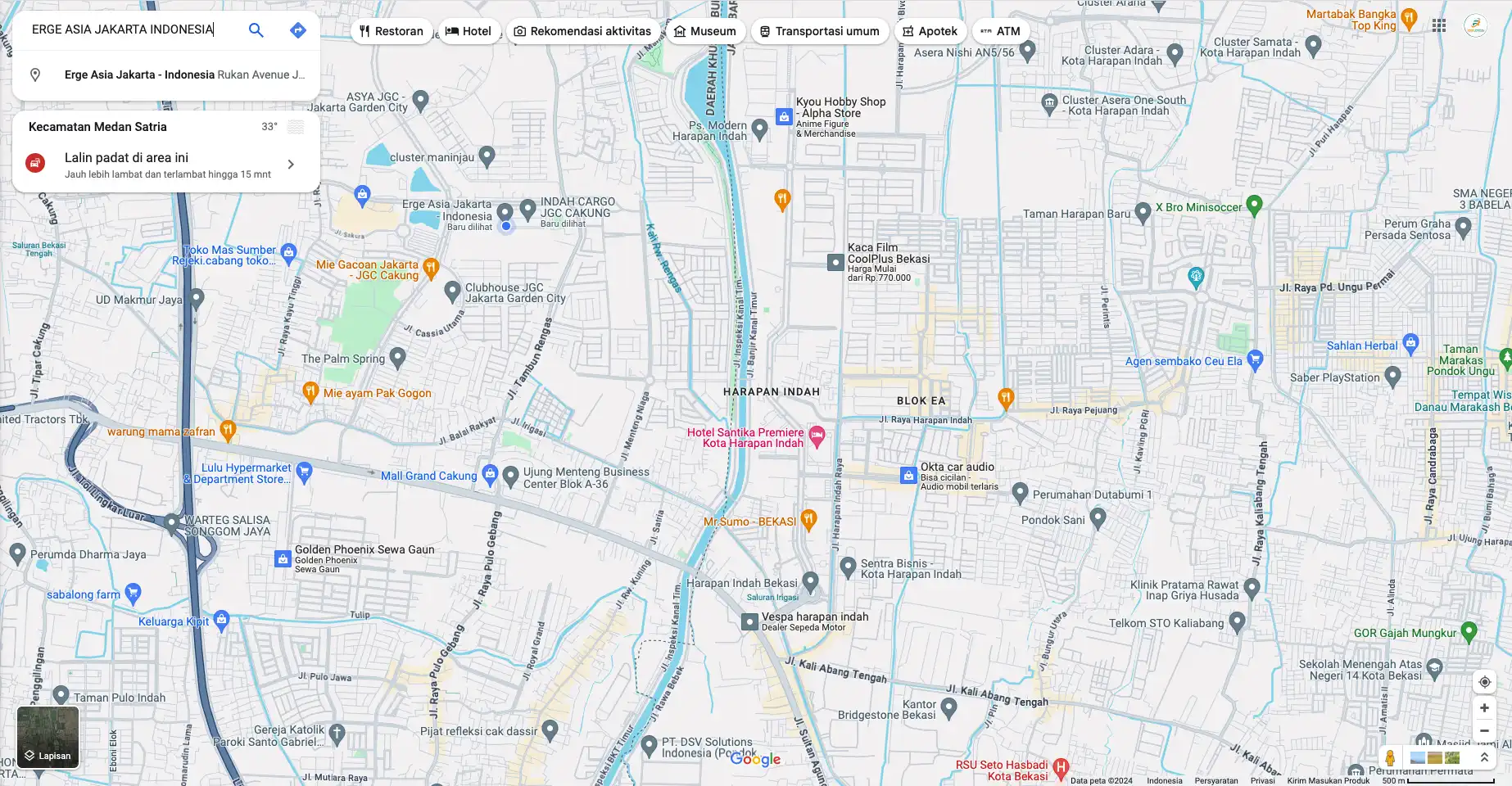
Once you've found the location, adjust the map view according to your needs:
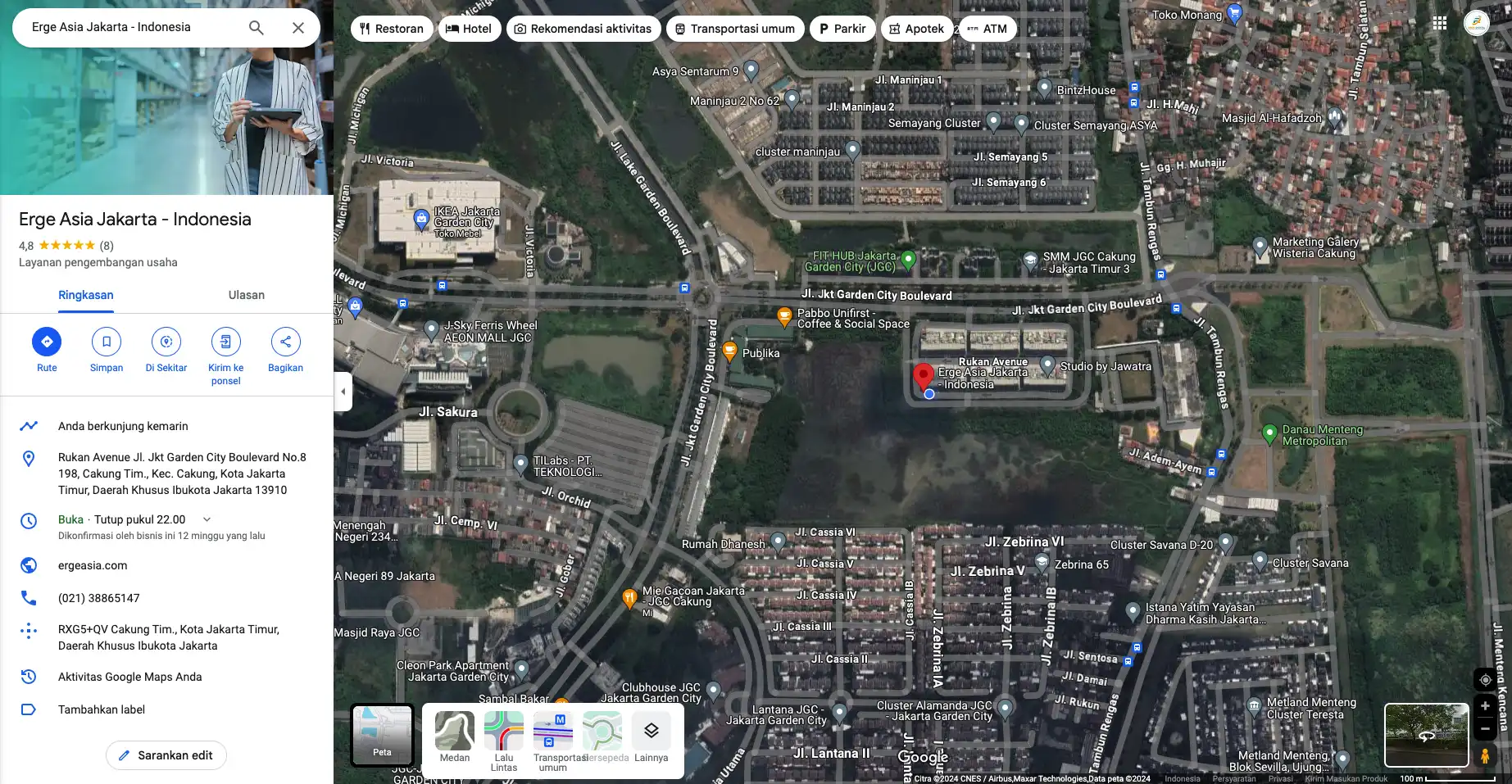
Click the menu icon three horizontal lines at the top left corner of the map (Menu) or click the "Share" button at the bottom right of the map.
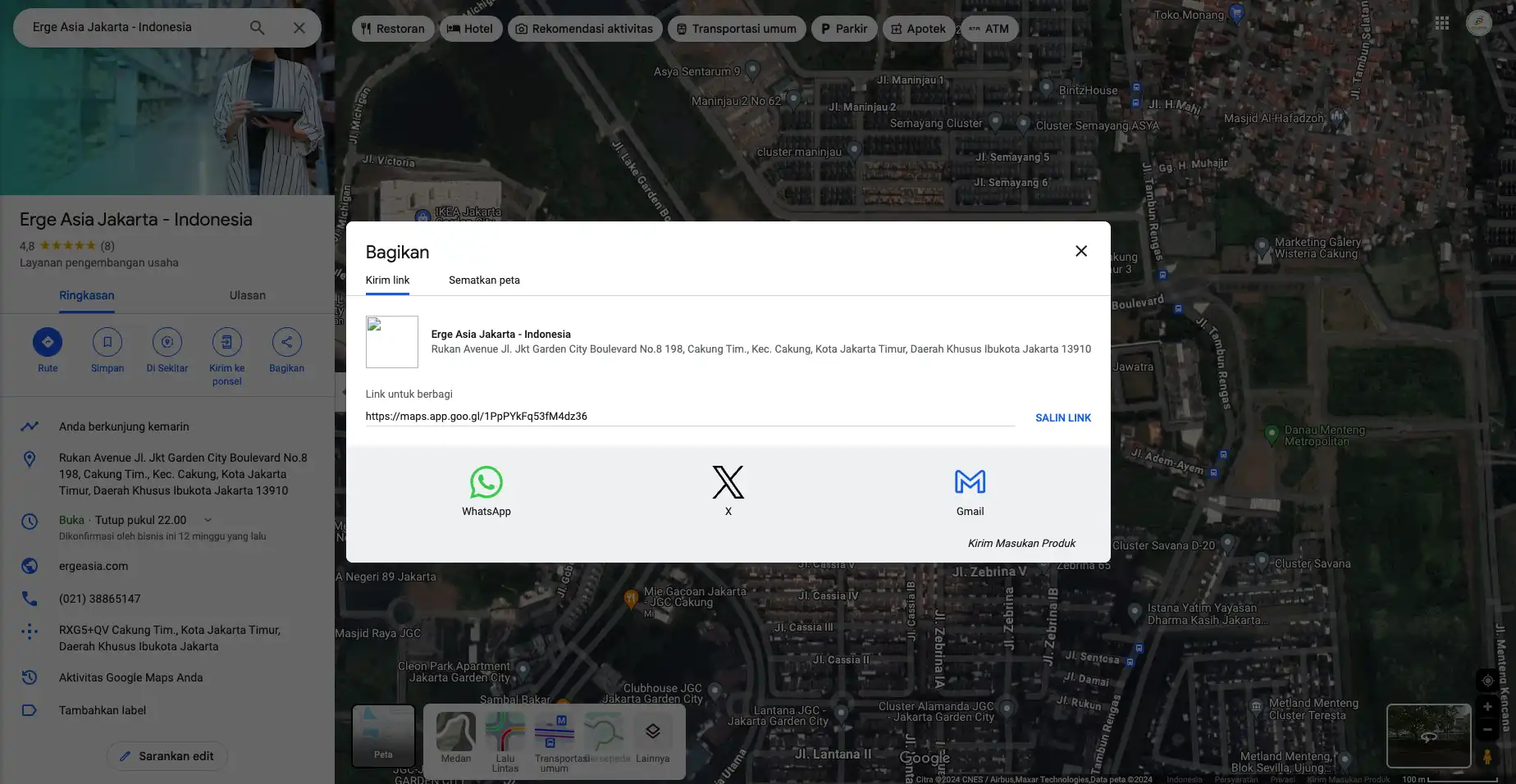
Choose tab "Embed a map" (Embed map) from the window that appears.
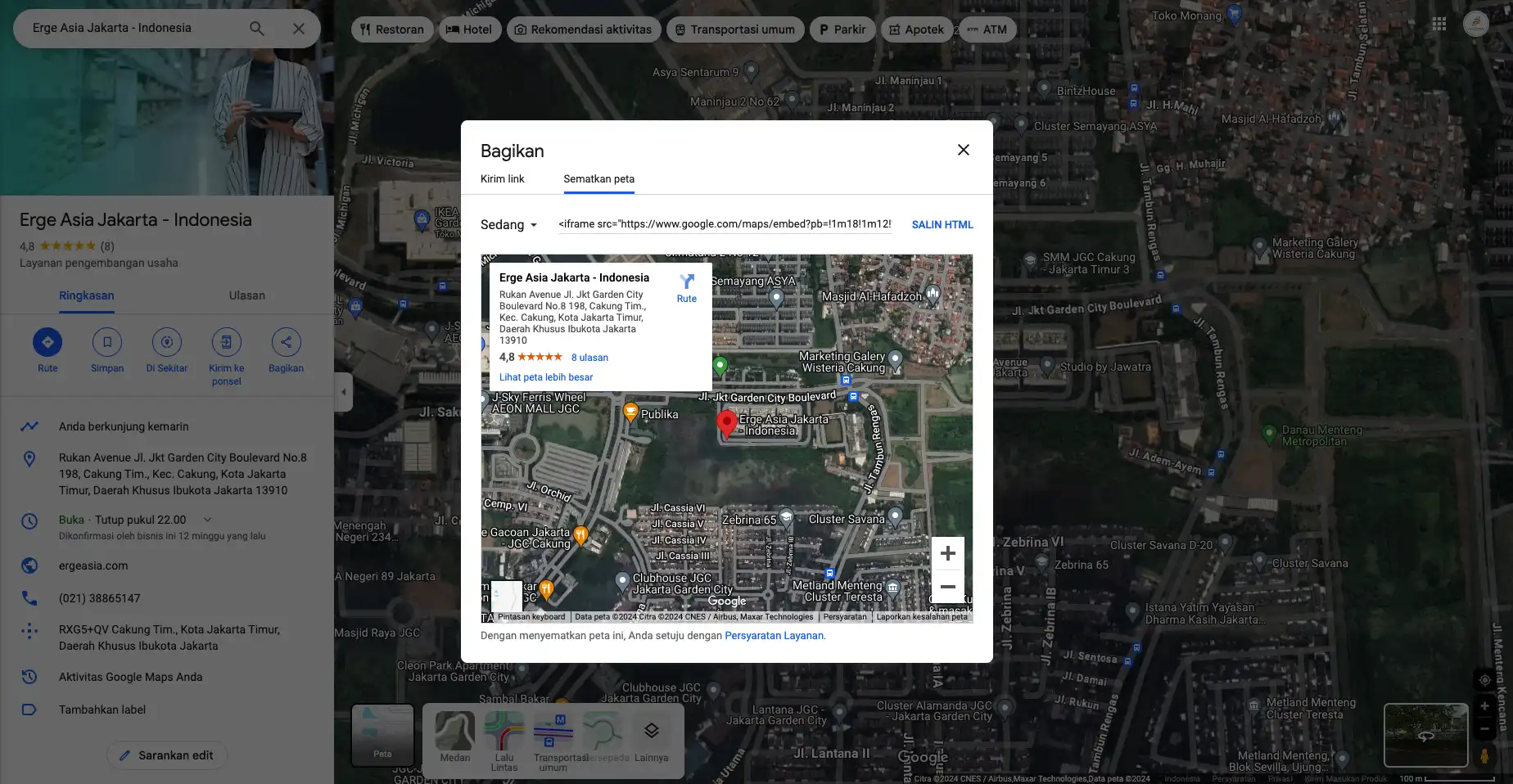
You will see a preview of the HTML code. Select the map size (small, medium, large, or custom), then click "Copy HTML".
<iframe src="https://www.google.com/maps/embed?pb=!1m18!1m12!1m3!1d4953...!2sErge%20Asia%20Jakarta%20-%20Indonesia!5e1!3m2!1sid!2sid" width="600" height="450" style="border:0;" allowfullscreen="" loading="lazy" referrerpolicy="no-referrer-when-downgrade">
</iframe>Enter the HTML code you have copied to your website or CMS.
To enter the Google Maps link in the Erge Asia CMS column, paste / enter in the Google Maps code input column, inner Google Maps link " (quotation mark).
<iframe src="https://www.google.com/maps/embed?pb=!1m18!1m12!1m3!1d4953...!2sErge%20Asia%20Jakarta%20-%20Indonesia!5e1!3m2!1sid!2sid" width="600" height="450" style="border:0;" allowfullscreen="" loading="lazy" referrerpolicy="no-referrer-when-downgrade">
</iframe><iframe src=" copy the link here " width="600" height="450" style="border:0;" allowfullscreen="" loading="lazy" referrerpolicy="no-referrer-when-downgrade"> </iframe>Google Maps has been successfully embedded on your page. Contact Erge Asia if you need assistance.